Best 7 Video Editing Software for Beginners in 2026
Here’s what I wish someone had told me before I started hunting for video editing software for beginners: the software matters less than your willingness to finish. I downloaded a professional-grade editor for my first project, spent three evenings watching tutorials, and produced exactly zero finished videos. My cousin downloaded a free mobile editor, cut her travel clips on her phone that same night, and had a finished video by dinner.
In this guide, you’ll get my honest breakdown of the 7 best video editing software for beginners in 2026 — real talk on learning curves, what “free” actually means at export time, what your laptop can handle, and which editor fits which kind of beginner. By the end, you’ll know exactly which one to download tonight and what to do in your first 30 minutes with it.
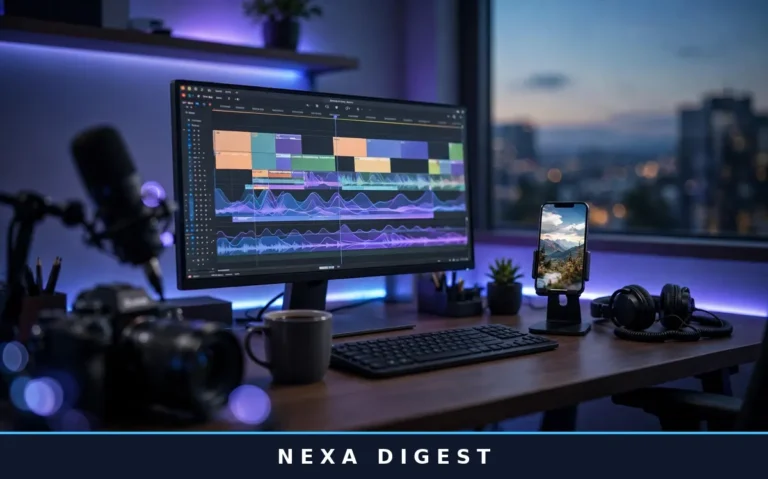
[IMAGE 1: Beginner creator editing a video timeline at a home desk setup]
What’s Inside This Guide
- Quick Picks: 7 Best by Beginner Type
- How I Picked These 7 Editors
- The 7 Best Video Editing Software for Beginners
- Free vs Paid: The Honest Reality Check
- Which Editor Is Right for You
- Your First 30 Minutes: A Starter Plan
- Frequently Asked Questions
- The Bottom Line
Quick Picks: 7 Best by Beginner Type
Short on time? Every pick below is video editing software for beginners in the truest sense — install it and export something today. Start here, then read the full reviews for the honest tradeoffs.
- Best overall: CapCut — free, phone and desktop, fastest path from raw clips to finished video.
- Best with zero downloads: Clipchamp — runs in your browser, built into Windows 11.
- Best for Mac/iPhone: iMovie — free, pre-installed, gentlest learning curve here.
- Best paid beginner editor: Filmora — friendly timeline with pro-style effects and AI helpers.
- Best free pro-level editor: DaVinci Resolve — Hollywood-grade tools for free, if you’ll learn.
- Best for learning step by step: Adobe Premiere Elements — Guided Edits teach you as you go.
- Best free open-source pick: Shotcut — no watermark, no cost, runs on modest hardware.
How I Picked These 7 Editors
Most roundups rank beginner editors by feature lists. That’s backwards — a beginner doesn’t need 400 transitions, they need to finish a video without quitting. I judged every contender against five beginner-first criteria:
- Time to first finished video: Can a newcomer export something watchable within a few hours? “After a weekend of tutorials” lost points.
- Honest free tier: “Free” means nothing if your export gets watermarked. I checked what happens at export, not what the pricing page implies.
- Runs on a normal laptop: It has to work on the machine you own, not the one you wish you owned.
- Room to grow: The best beginner tool doesn’t become useless in a month — it scales with you or teaches transferable habits.
- Support in 2026: Active tutorials, forums, or in-app guidance. A great tool with dead documentation is a trap.
That’s why some famous names are missing here. Certain industry-standard editors are incredible software and terrible first editors — learning to drive in a race car is technically possible, mostly miserable.
The 7 Best Video Editing Software for Beginners
Ranked by how I’d recommend them to a friend starting from zero, with the honest verdict on each.
1. CapCut — Best Overall for Beginners
- Price: Free, with optional paid Pro features
- Platforms: iOS, Android, Windows, Mac, browser
- Best for: Social videos, Shorts, Reels, TikTok, quick YouTube edits
CapCut is the reason “I’ll edit it later” stopped being my excuse. One-tap auto captions with animated styles, background removal, trending templates, text-to-speech voiceovers — the features beginners actually use sit front and center instead of buried in menus. The free tier includes a real multi-track timeline that syncs across phone and desktop, so you can rough-cut on the train and finish on your laptop.
Honest caveats: some premium effects and templates add watermarks, the desktop version has fewer features than mobile, and terms vary by region — read the current terms before using it for client work. For a beginner who wants to publish this week, though, nothing beats it.
2. Clipchamp — Best for Starting Fast, No Download
- Price: Free, with paid plans for premium exports and stock
- Platforms: Browser (Chrome, Edge), built into Windows 11
- Best for: Family videos, school projects, quick explainers
Clipchamp wins the “I want to edit something right now” award. No installer, no 2GB download — open a browser tab and you’re editing. It’s clean, uploads are painless, and free exports come out at 1080p without a watermark. Auto captions, AI text-to-speech voiceover, screen recording, and stock footage are all built in.
The tradeoff is ceiling height: a slow connection will slow you down, and power users eventually hit walls around advanced audio and color. But most beginners never reach that wall. Don’t pay for headroom you may never use.
3. iMovie — Best for Mac and iPhone Users
- Price: Free (pre-installed on Apple devices)
- Platforms: Mac, iPhone, iPad
- Best for: Family videos, travel recaps, school projects, simple YouTube videos
If you own Apple hardware, you already own one of the best video editing software for beginners ever made — it’s sitting in your Applications folder. iMovie’s genius is what it leaves out: no confusing panels, no jargon. Drag clips in, trim them, pick a Hollywood-style trailer template, and you have something genuinely polished. My mom edited her garden tour videos in iMovie with zero help from me. That’s the whole review, really.
Two honest limits: it’s Apple-only, and there’s no built-in auto-captioning. When iMovie starts feeling small, Final Cut Pro is the natural upgrade — but most beginners won’t need it for a long while.
[IMAGE 2: Split view comparing a simple beginner editing interface and a professional timeline]
4. Filmora — Best Paid Beginner Editor
- Price: Annual plan around $50/year, lifetime license around $80
- Platforms: Windows, Mac
- Best for: Aspiring YouTubers, hobbyists, small business videos
Filmora is the sweet spot for beginners serious enough to spend a little money but not enough to wrestle with professional software. Big clear buttons, drag-and-drop effects, and an effects store that keeps adding fresh templates. The AI helpers save real time: auto-reframe for vertical video, silence detection that cuts dead air, and motion tracking that used to require pro skills.
The part other roundups soft-pedal: the free version stamps a watermark on exports — it’s a trial, not a free editor. And the subscription model means you keep paying to keep editing, though a lifetime license exists. It’s the right buy when you know you’ll edit weekly and want polish without the pain.
5. DaVinci Resolve — Best Free Pro-Level Editor
- Price: Free (Studio version $295 one-time)
- Platforms: Windows, Mac, Linux
- Best for: Beginners who want to learn properly and never outgrow their editor
Straight talk: DaVinci Resolve is the most capable free editor on this list and the hardest to start with. The free version includes the color grading engine used on Hollywood productions and a full Fairlight audio suite — no watermark, no export limits, no trial clock. Almost absurd value.
But here’s what most guides skip: budget a weekend, not an evening, before your first finished video. The page-based workflow confuses newcomers, node-based color has a real learning curve, and you’ll want 16GB of RAM plus a decent graphics card or playback will stutter. It’s for the beginner who thinks in years, not weeks — learn one editor deeply and never pay a cent. Even Filmora’s own [Vendor] comparison of DaVinci Resolve vs CapCut vs Filmora admits Resolve wins on depth while losing on learning curve.
6. Adobe Premiere Elements — Best for Learning Step by Step
- Price: Paid, 3-year term license (check Adobe’s current pricing)
- Platforms: Windows, Mac
- Best for: Beginners who want built-in lessons, family archivists
Premiere Elements is the most underrated pick here, winning on one feature nobody else offers: Guided Edits. These step-by-step, in-app tutorials walk you through real techniques — time remapping, double exposure, bounce-back effects — while you build an actual project. You’re not watching a tutorial; you’re doing the thing with training wheels on. The Quick, Guided, and Advanced modes mean the software grows with you instead of intimidating you on day one.
Catches: it’s a 3-year term license rather than buy-it-forever, and the tutorial community is smaller than Premiere Pro’s or DaVinci’s. But if “teach me while I work” is your learning style, nothing else does it better. For AI-assisted options alongside it, see our guide to the best free AI video editing tools for YouTubers.
7. Shotcut — Best Free Open-Source Pick
- Price: Completely free, no paid tier at all
- Platforms: Windows, Mac, Linux
- Best for: Budget PCs, privacy-conscious users, open-source fans
Shotcut is the quiet workhorse of free editing. No account, no subscription, no watermark, no upsell — there is no paid version. It handles a wide range of formats natively, so fewer “why won’t this file import” headaches, and it runs well on modest hardware where DaVinci Resolve would choke.
Honest downside: the interface looks dated next to CapCut or Filmora, and you’ll find fewer step-by-step tutorials. But free, no watermark, runs anywhere? For a beginner on a tight budget, that’s hard to argue with.
Free vs Paid: The Honest Reality Check
Most video editing software for beginners falls into three pricing camps — and knowing them saves you from the classic trap: editing for three hours, then discovering your export has a watermark.
- Genuinely free, no watermark: DaVinci Resolve, Shotcut, iMovie, and Clipchamp’s free tier let you export finished videos without paying. Start here.
- Free with strings attached: CapCut’s core editing is free, but some premium effects add watermarks. Filmora’s free version is really a trial — watermarked exports until you pay. Test-export a 10-second clip before committing to a project.
- Paid upfront: Filmora and Premiere Elements remove all limits and watermarks. Worth it when you’re editing regularly and your time is worth more than the fee.
Before committing, check three things on the current pricing page: watermark on free exports, which features sit behind the paywall, and what the license terms say. Terms change — a 2024 review may not hold in 2026. For a second opinion, this [Research] honest 2026 guide to free video editing software compares watermark policies and export limits across the major free editors.
[IMAGE 3: Creator exporting a finished video with export settings on screen]
Which Video Editing Software for Beginners Is Right for You
The right video editing software for beginners depends entirely on what “beginner” means for you:
- “I make TikToks, Reels, and Shorts” — CapCut. Templates, auto captions, and vertical-first workflow. Nothing else is faster.
- “I’m on a Mac and want simple” — iMovie. Already on your device; you’ll finish a video tonight.
- “I don’t want to download anything” — Clipchamp in your browser. On Windows 11, it’s pre-installed.
- “I want to learn properly and never pay” — DaVinci Resolve. Budget a weekend; gain pro-level skills for free.
- “I’ll pay a bit for friendly power” — Filmora. AI tools and effects justify the price if you edit weekly.
- “Teach me step by step” — Premiere Elements. Guided Edits are a patient teacher inside your software.
- “My laptop is old, budget is zero” — Shotcut. Lightweight, free forever, no watermark.
Still torn? Pick the easier one — cutting, trimming, and pacing skills transfer to every editor on this list. Students often pair these editors with the best free AI tools for students for scripting and research help.
Your First 30 Minutes: A Starter Plan
Downloading is the easy part. Here’s what to actually do so you finish something today instead of drowning in menus:
- Minutes 0–5: Import 3–5 short clips from your phone. Don’t overthink the footage; this is practice.
- Minutes 5–15: Drag them onto the timeline in order. Trim the ends, cut one boring middle section. That’s 80% of all video editing right there.
- Minutes 15–22: Add one text title and background music at low volume. Generate auto captions if available — they boost watch time enormously.
- Minutes 22–30: Export at 1080p and watch it on your phone. Done — your first finished video.
Was it perfect? Of course not. But you now know the full loop: import, cut, polish, export. Every advanced technique — color grading, keyframes, motion tracking — is a fancier version of this loop. Repeat it five times and you’re no longer a beginner.
Frequently Asked Questions
What is the easiest video editing software for beginners?
For most people, CapCut (any device) or iMovie (Apple devices) are the easiest starting points — raw clips to finished video in under an hour with no experience. Clipchamp is equally easy if you prefer editing in a browser without downloads.
Which free video editing software has no watermark?
DaVinci Resolve, Shotcut, and iMovie all export without watermarks for free. Clipchamp’s free tier also exports 1080p watermark-free. Filmora’s free version and some CapCut premium effects can add watermarks, so test-export a short clip first.
Is CapCut really free?
The core editor is free on mobile, desktop, and browser, including auto captions and most tools. Some premium effects, templates, and cloud features need a paid Pro subscription, and certain premium elements add watermarks. Terms vary by region — check CapCut’s current terms for your country.
Can my laptop run DaVinci Resolve?
Resolve is the most demanding editor here. Aim for 16GB of RAM, a decent GPU, and an SSD for smooth editing. On older laptops you’ll see stuttering playback. If your machine struggles, Shotcut or Clipchamp run far better on modest hardware.
Filmora or Premiere Elements — which should a beginner buy?
Choose Filmora for modern AI tools, a big effects library, and frequent template updates for social or YouTube content. Choose Premiere Elements for step-by-step Guided Edits — ideal for family videos and hobby projects. Both are beginner-friendly; they teach different styles.
Do I need a powerful computer to start editing video?
No. CapCut, iMovie, Clipchamp, and Shotcut run comfortably on average laptops and phones. Serious hardware only matters for 4K footage, heavy effects, or DaVinci Resolve’s pro features. Start with what you have; upgrade when projects demand it.
iMovie vs CapCut — which is better for a Mac user?
Depends on what you make. iMovie is simpler and deeply integrated with macOS — great for personal videos. CapCut offers auto captions, trending effects, and better short-form social tools. Many Mac users keep both.
How long does it take to learn video editing basics?
Trimming clips, arranging a timeline, adding text and music takes most people one focused evening with CapCut, iMovie, or Clipchamp. Getting comfortable takes about five finished videos. DaVinci Resolve takes roughly a dedicated weekend.
What is the best video editing software for YouTube beginners?
Filmora hits the sweet spot with its screen recorder, templates, and AI helpers; DaVinci Resolve is the best free long-term choice; CapCut is great for Shorts. Honest answer: any editor here can produce good YouTube videos — uploading consistently matters far more.
Should I start with free or paid video editing software?
Start free, always. Edit at least five videos before spending money — by then you’ll know whether you enjoy editing and which features you miss. Buy only when free tools start limiting you. Paying first and quitting second is the most expensive way to learn.
The Bottom Line
The best video editing software for beginners is the one you’ll actually open twice. All the power in the world means nothing if the interface makes you quit after one session — I learned that the hard way with my abandoned pro editor.
My shortlist: CapCut for speed, iMovie on a Mac, Clipchamp if you hate downloads, Shotcut on a zero budget, Filmora when you’re ready to invest, Premiere Elements for a built-in teacher, DaVinci Resolve when you’re ready to go deep. Pick one tonight, follow the 30-minute plan, and finish your first video. The second one is always easier.
Related terms covered: auto captions, multi-track timeline, color grading, export resolution, watermark policy, keyframes, transitions, motion tracking, screen recording, chroma key, rendering, audio mixing